

How to Export Products to Meta (Facebook) Catalog Using the Sync Master App
The Products Sync Master app allows you to export your Shopify products to Meta (Facebook) Commerce Manager for advertising and catalog synchronization.
Step 1: Create a New Export Template
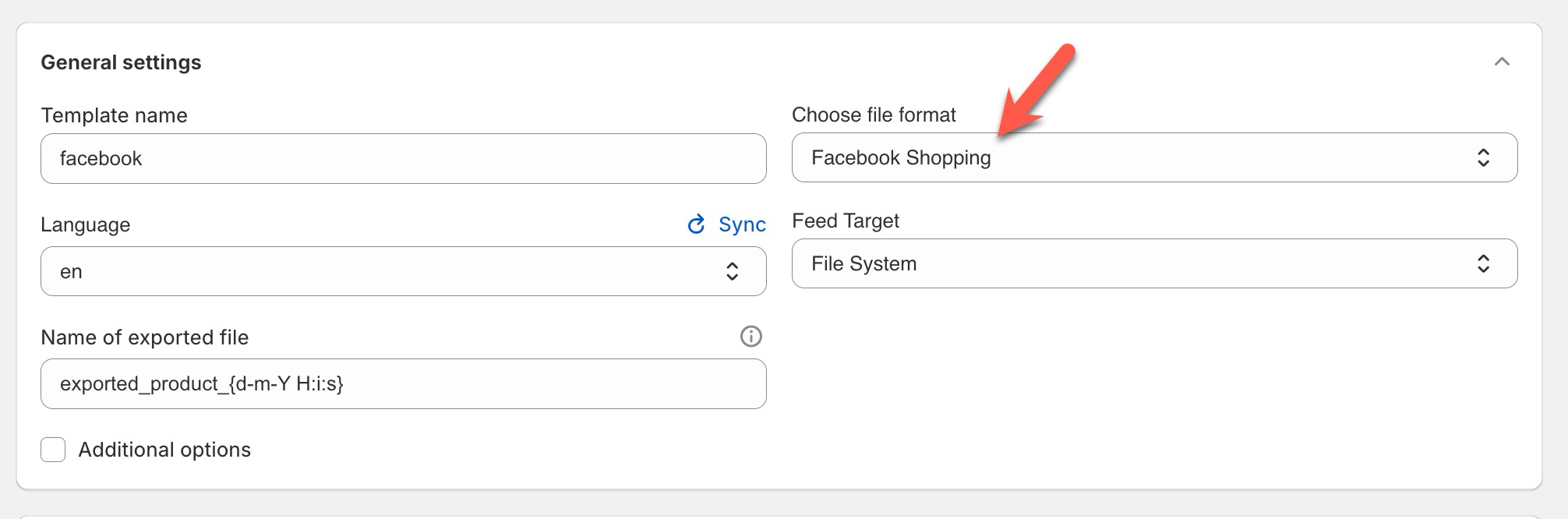
Go to the Export section in the app and click the Launch Export button to create a new export template.
Set your export template name and select Facebook Shopping as the file format.
Step 2: Filter Products for Export
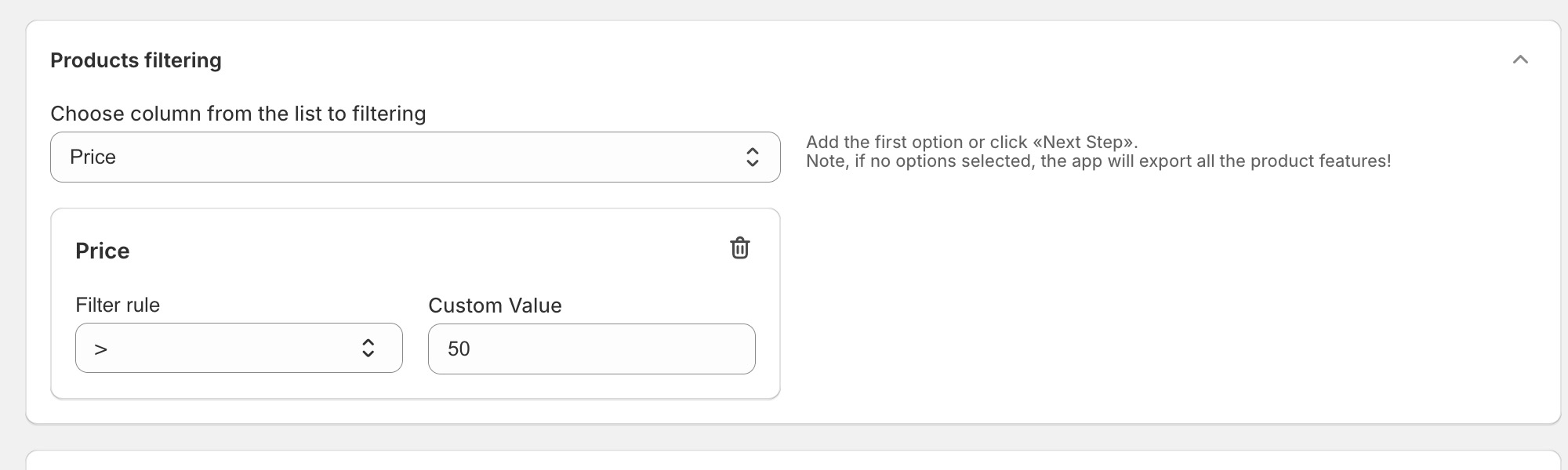
Next, you can apply product filters to choose which products to include in your Meta Catalog feed. If you skip this step, all active products in your store will be exported.
Step 3: Configure Facebook Shopping Fields
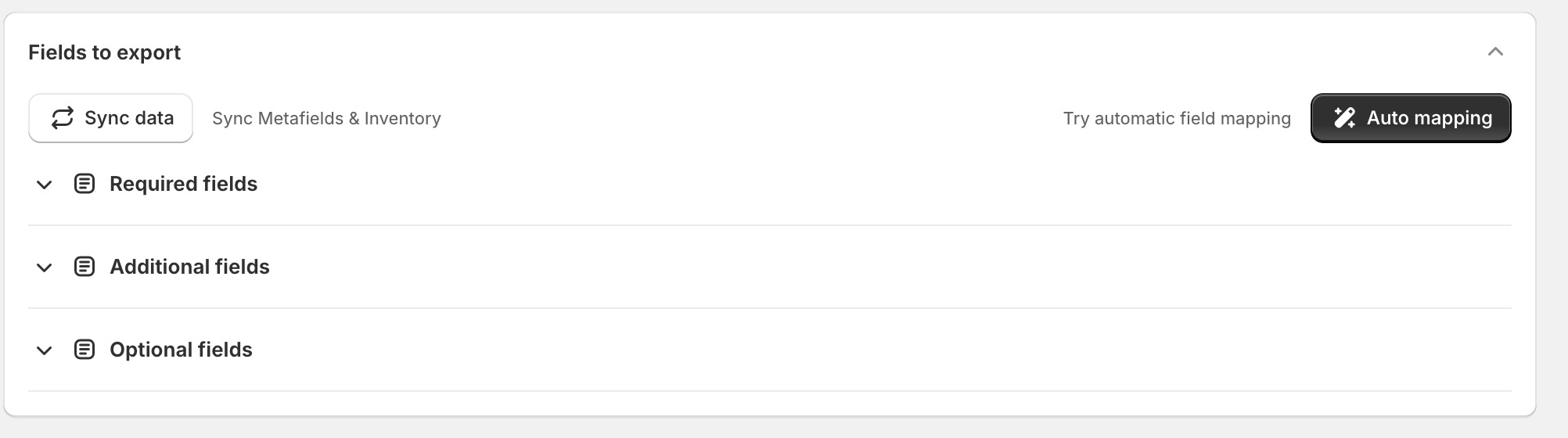
The Facebook Shopping feed contains three types of field sections:
- Required fields — must be selected for all exports.
- Additional fields — include important attributes such as Size (required for each product) and Quantity (optional but recommended).
- Optional fields — can be selected if you want to include extra product data such as material, pattern, or style.
Step 4: Use Auto Mapping
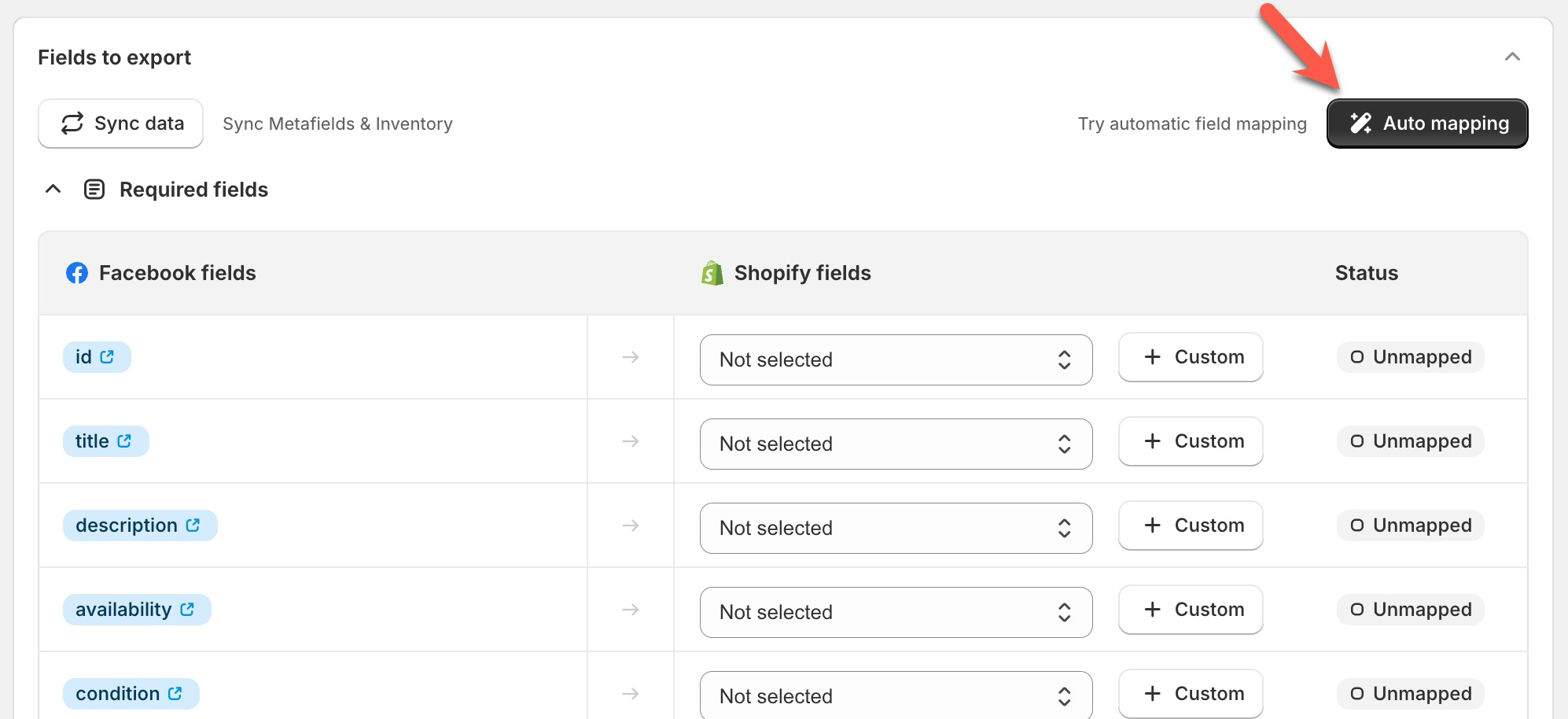
Click the Auto Mapping button to automatically match your Shopify product fields with Meta feed requirements. This saves time by linking the most common base fields automatically.
Step 5: Save the Template and Copy the Feed URL
Once all fields are mapped, save your export template. After saving, a feed link will appear — this URL provides access to your exported file that can be used inside Meta Commerce Manager.
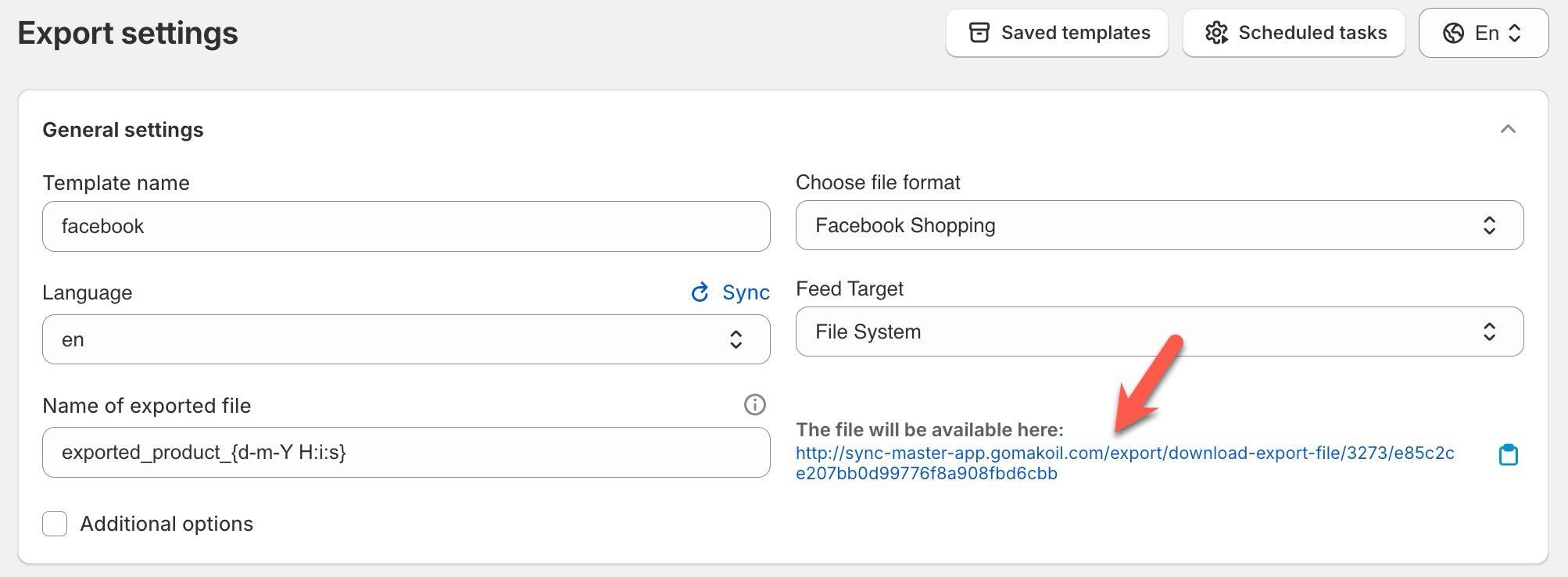
Step 6: Add Feed to Meta Commerce Manager
Log in to your Meta Commerce Manager account.
Click Add Products and in the Upload Products section, paste your Sync Master feed URL.
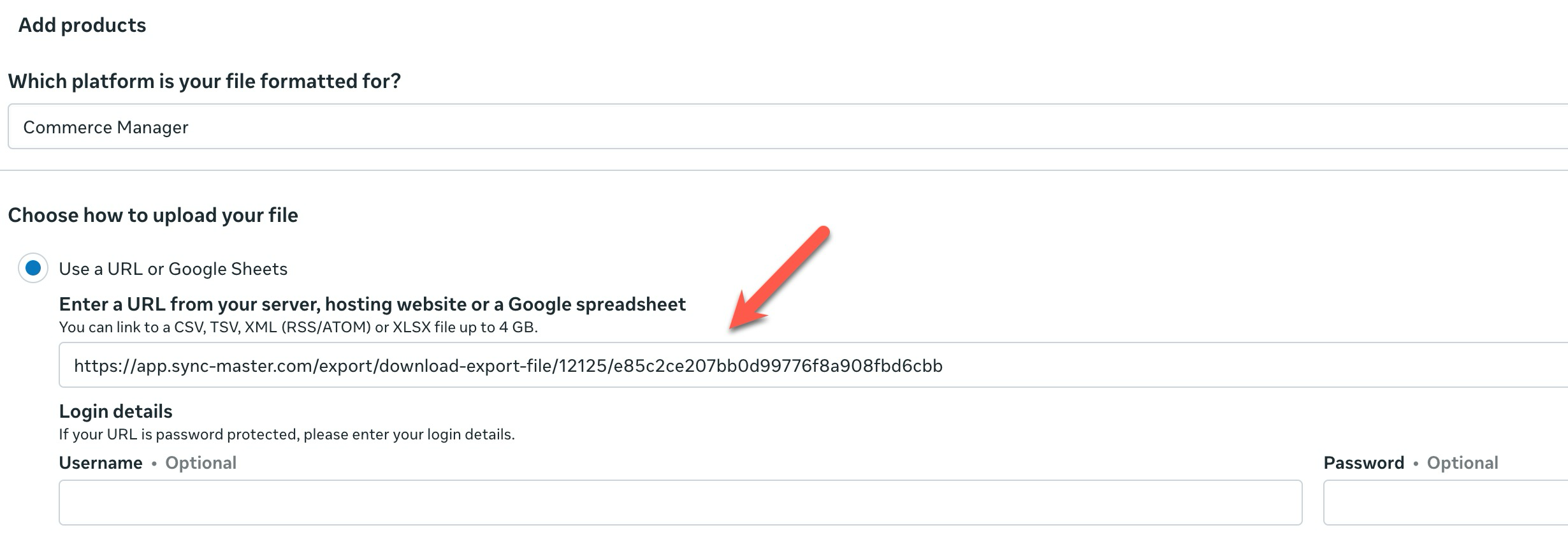
Select any additional feed settings and click Upload to start the import process:
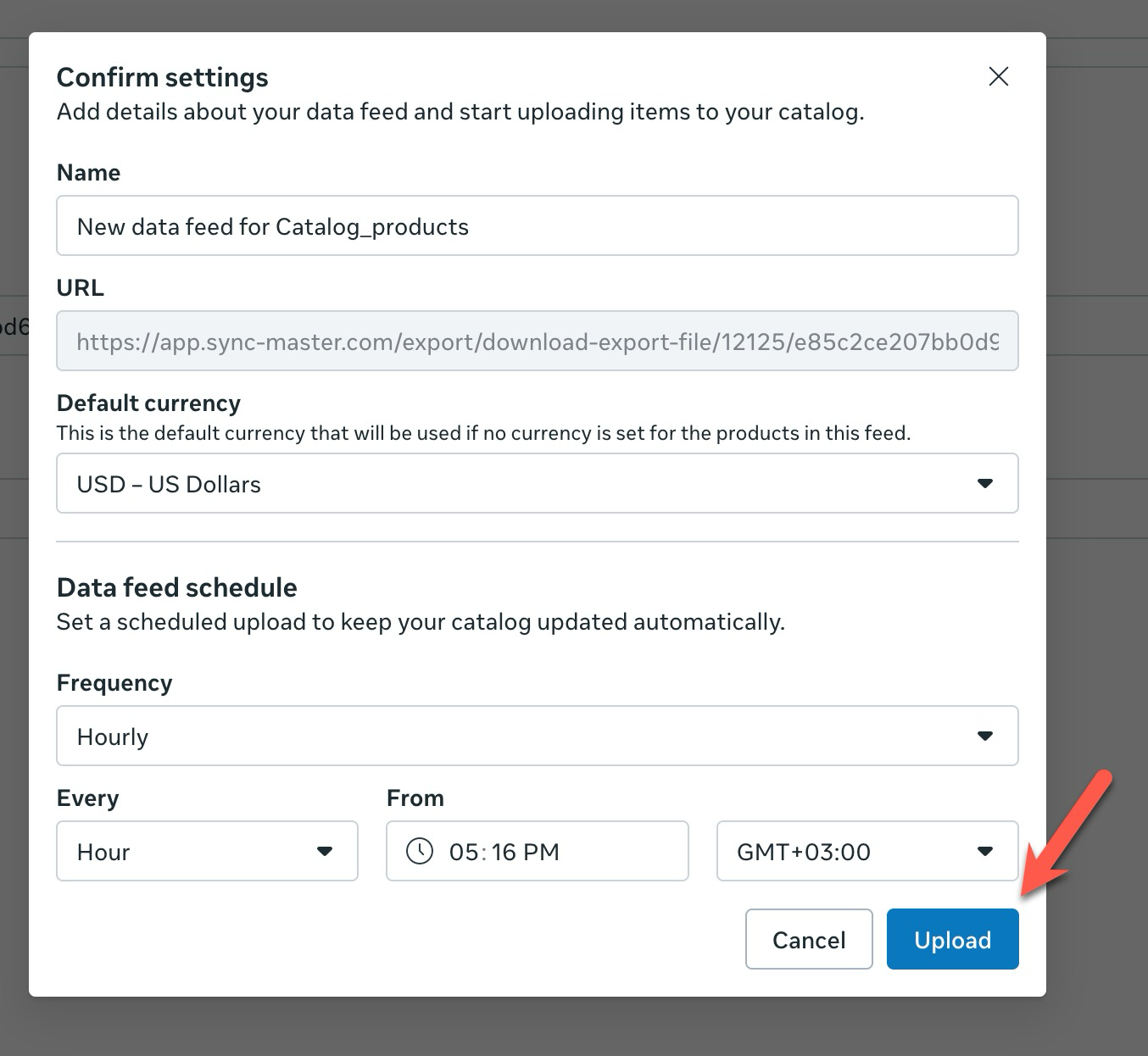
Step 7: Monitor Import Progress
After uploading, you will see your products begin importing into your Meta Commerce Manager catalog:
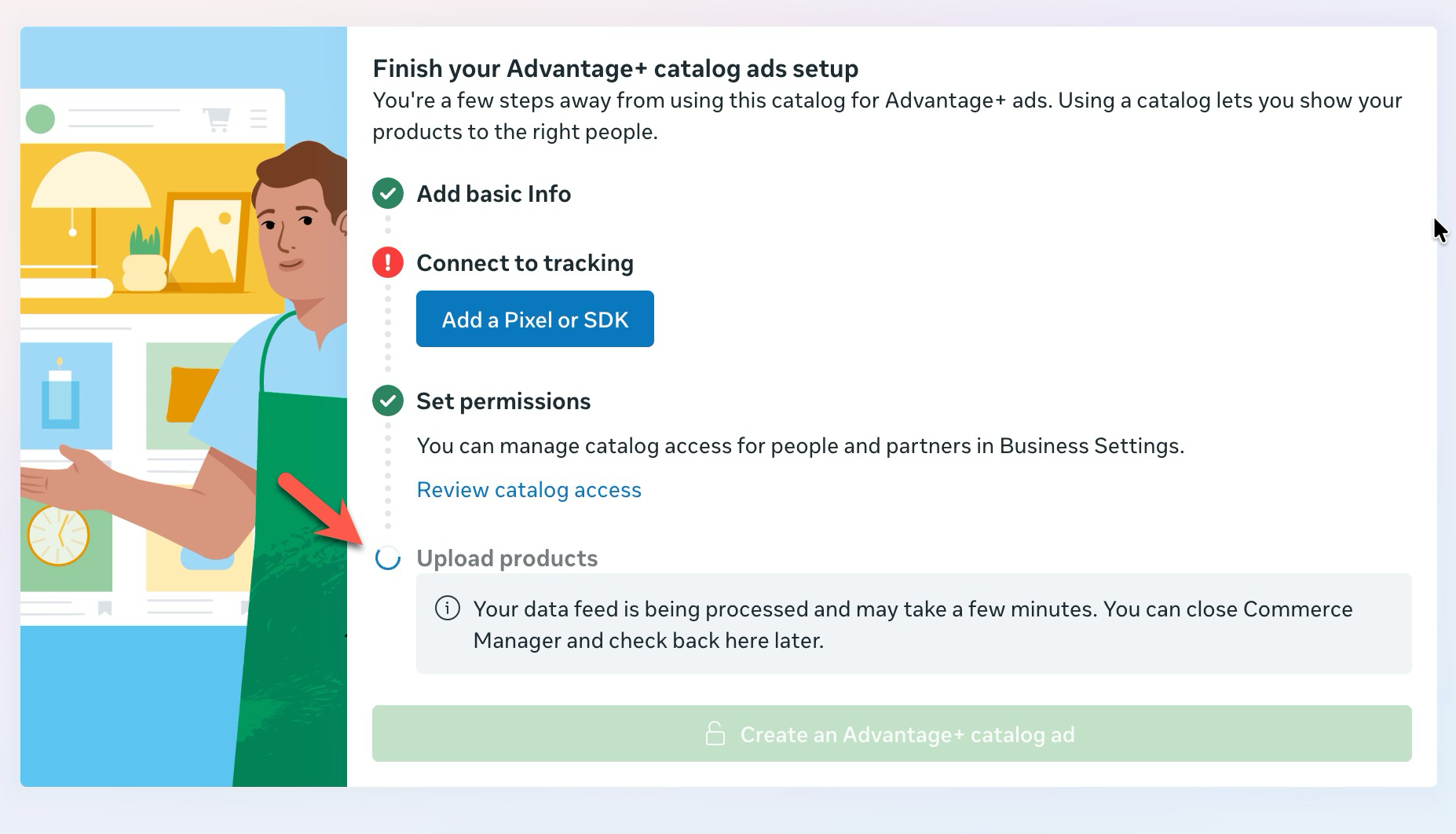
Step 8: Schedule Daily Feed Updates
To keep your product feed automatically updated, schedule your export template to run each day. This ensures your Meta catalog always contains the latest product data, prices, and inventory.
Read the full guide on scheduling exports here: How to Configure Scheduled Tasks
That’s it! Your Shopify products are now successfully exported to Meta Commerce Manager and automatically synced using the Sync Master app.
